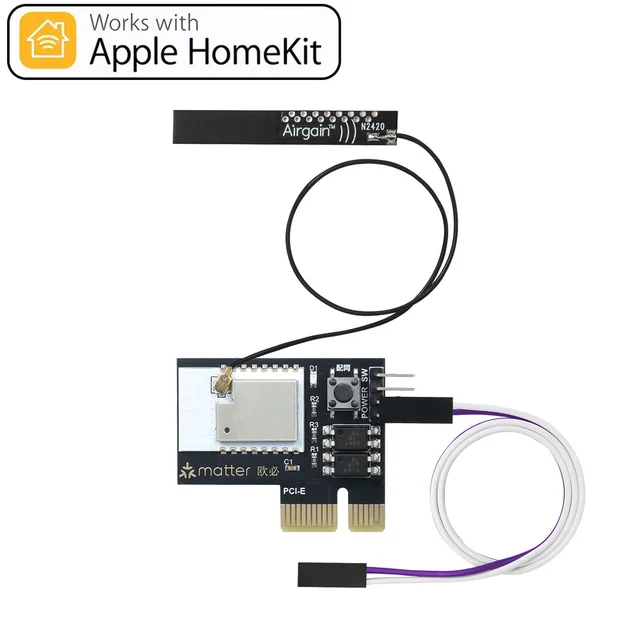
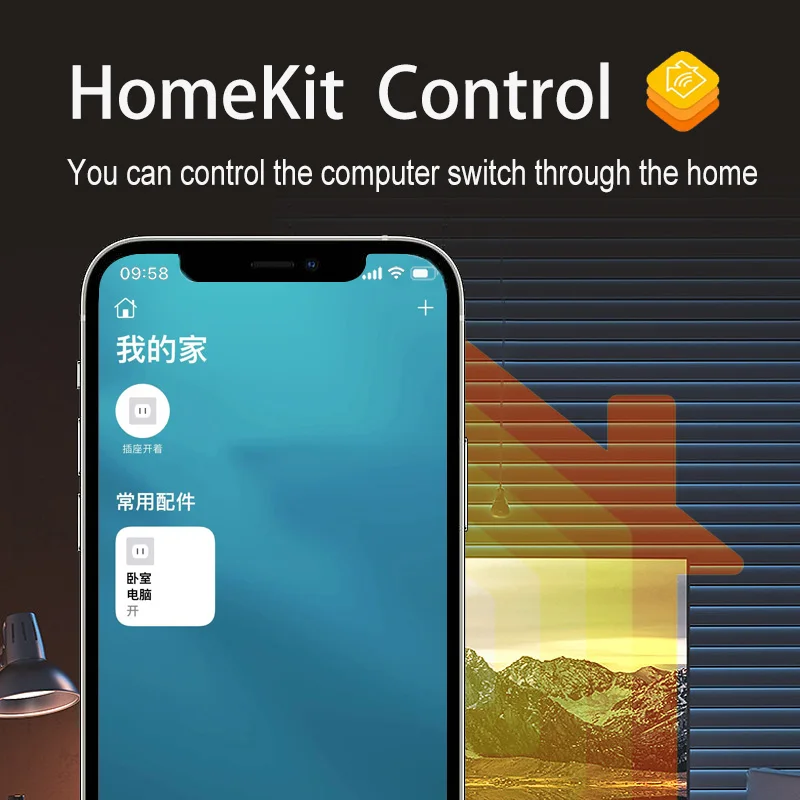
Control your desktop computer remotely with ease using the Wifi Remote Switch. This innovative device allows you to power on/off your computer, set timers, and schedule tasks using Apple Homekit APP and Siri voice control.
Note:
1.It doesn't work with branded desktop computer,like Apple,Dell and HP etc.
2.Before purchasing, on your computer, enter BIOS Settings/Advanced/APM Configuration and change the option "ErP Ready" to "Disabled". If it cannot be changed, please do not purchase it, otherwise it cannot be used.
Wifi Remote Switch for Desktop Computer
1. Easy Installation
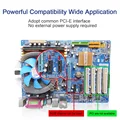
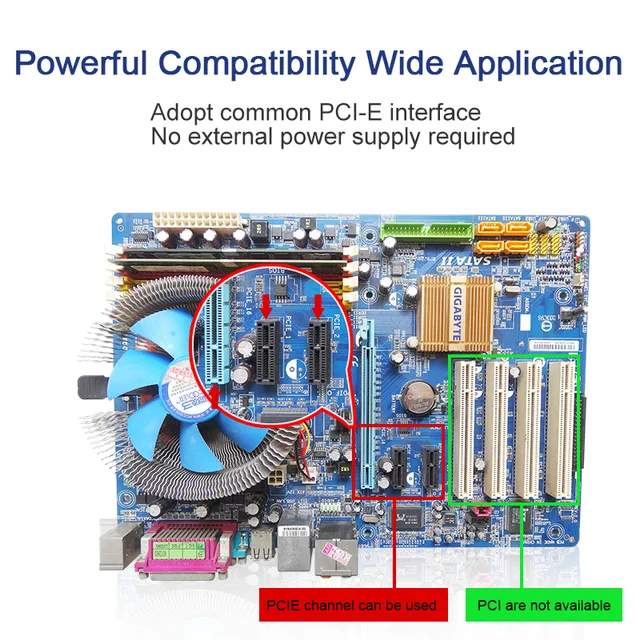
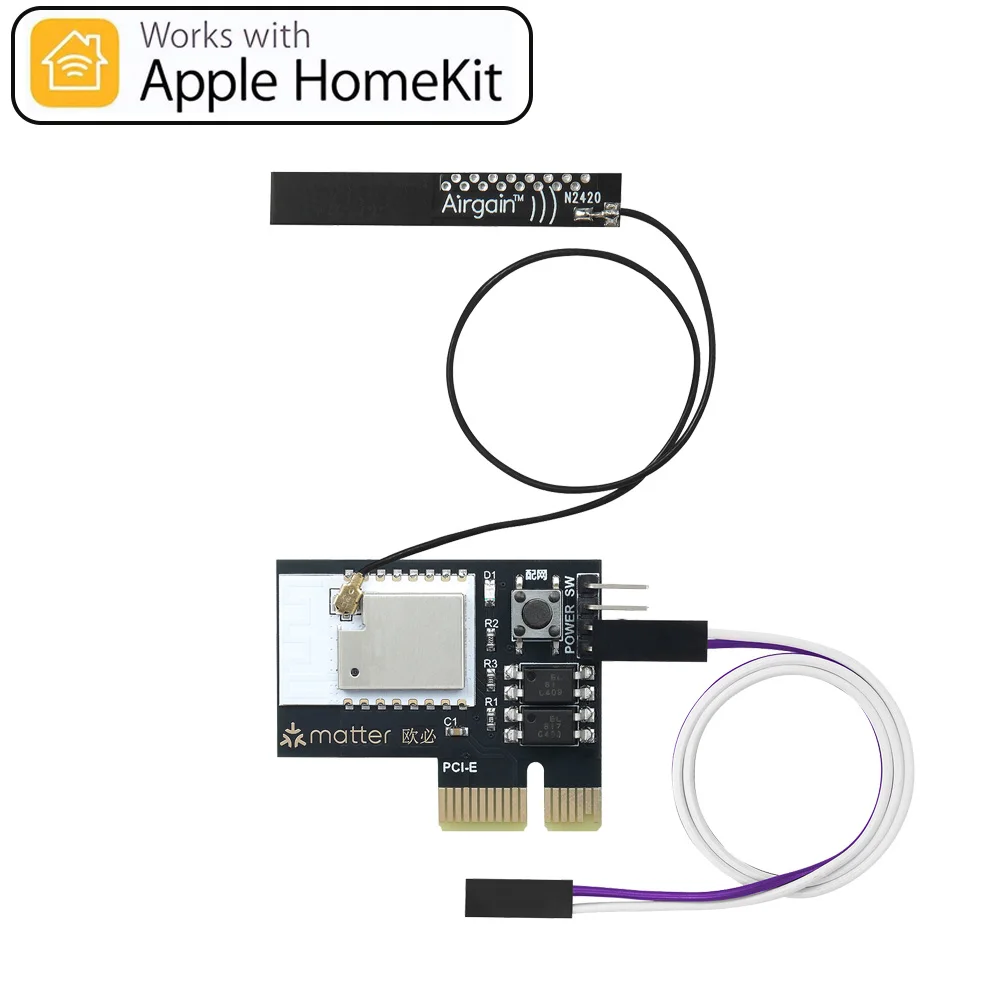
Standard PCIe port, compatible with most destop computer. Easy Installation, don't need any driver software.
2. App Remote Control
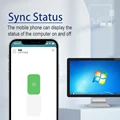
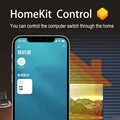
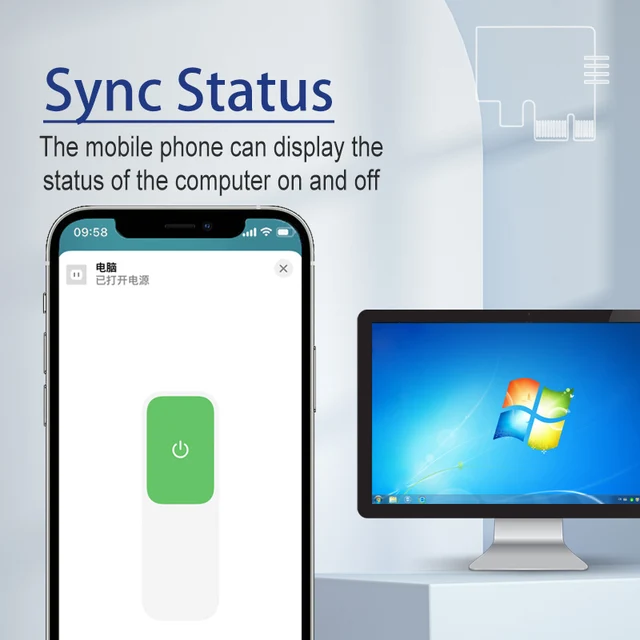
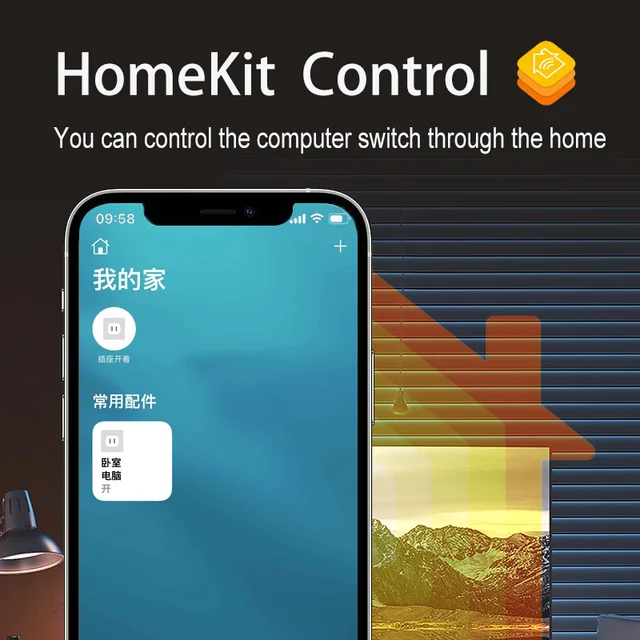
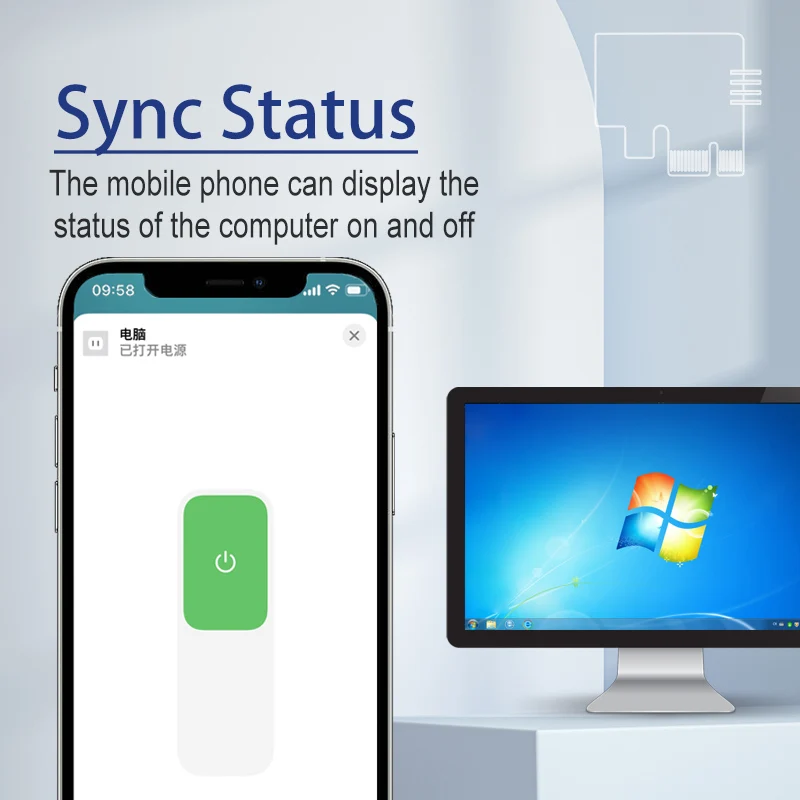
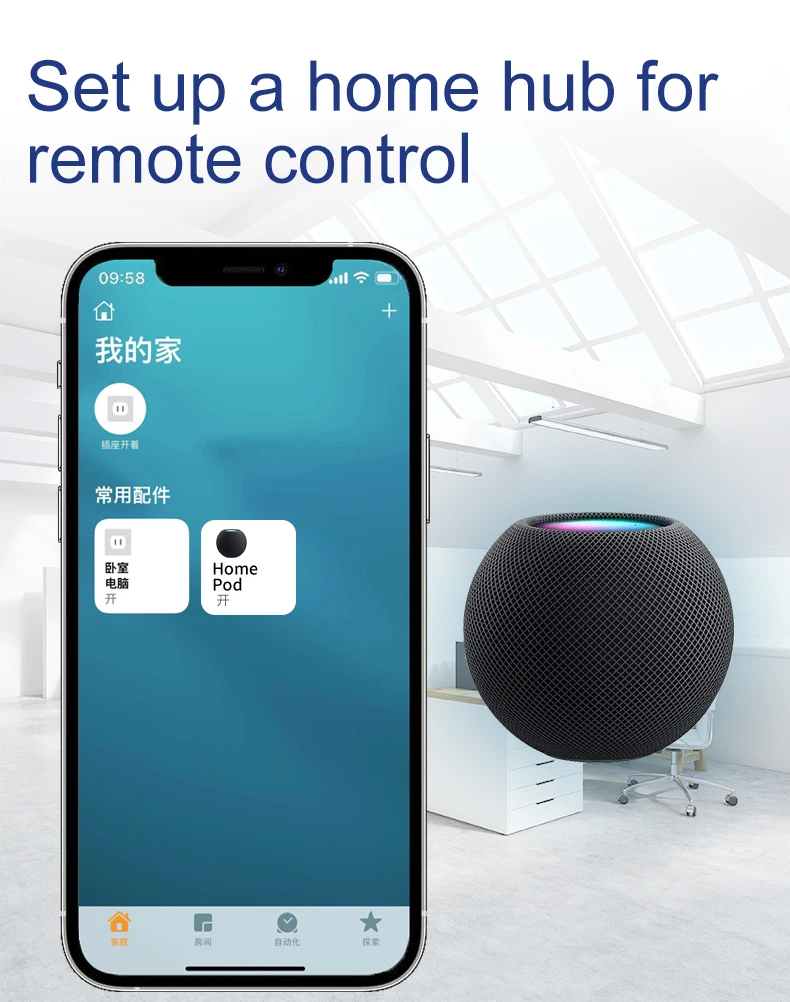
Control your computer on Apple Homekit APP anytime any where. Always know the computer status on App.
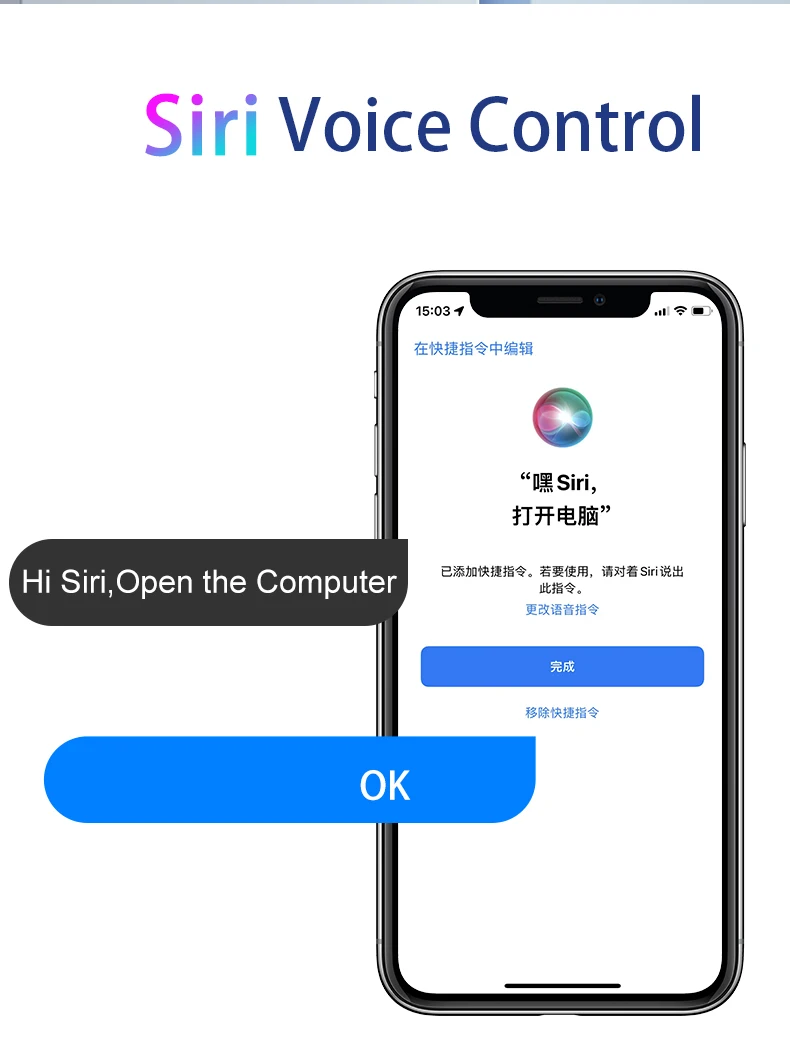
3. Siri and Homepod Voice Control
By this WIFI remote card. You can use Siri or your Homepod speaker to control your pc.
4.Compatible with most Speaker
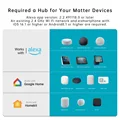
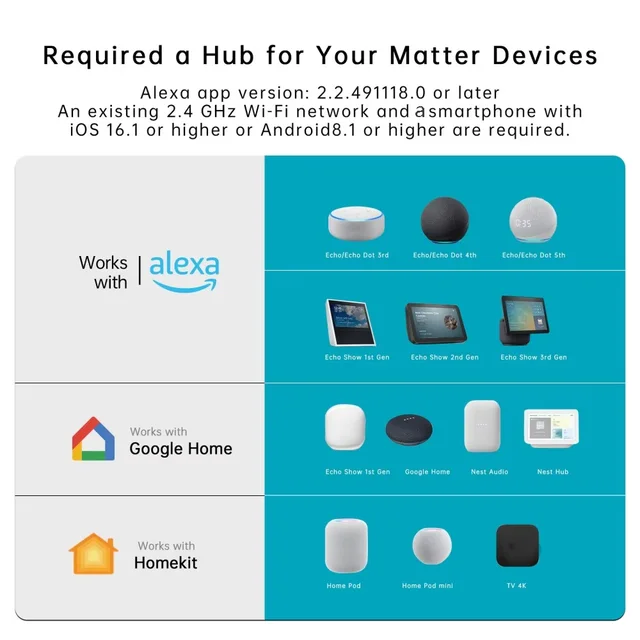
Work with Alexa Echo, Google Home Assistant, Smartthings, Yandex Alice, easy to control your PC with simple voice command.
5. Timer and Schedule
Set a timer to power on/off, or make a weekly schedule to power on/off the computer, automate your PC.
Siri Homepod Voice Remote Control
How to install?
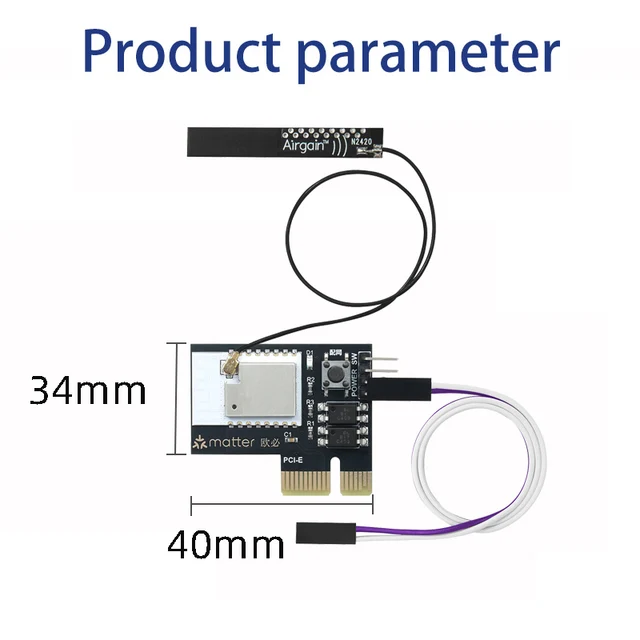
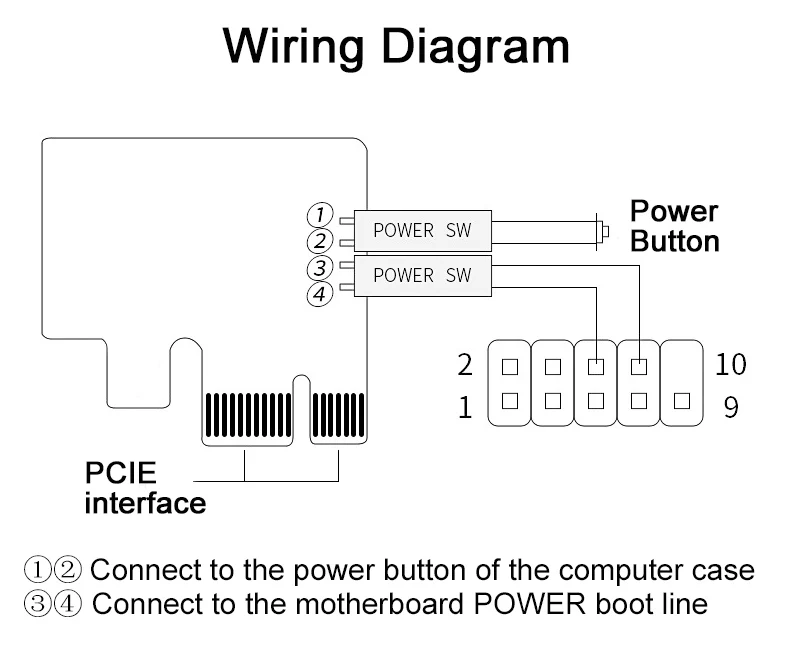
Step 1,find Power SW cable and Reset SW cable on mainboard,then pull out them.
Step 2,fix APP remote computer module in free PCIE.
Step 3,Insert the previously pulled out Power Sw and Reset Sw wires into the corresponding positions of the boot card, and insert the Power Sw and Reset Sw wires of the boot card into the corresponding positions of the motherboard.
How to add the Product in the app?
After installation, You need to make the product enter into reset status.and then the product will enter into wifi pairing status.
You need to press and hold the SET button for 5 seconds until blue pairing led indicator flash quickly all the time.which mean the product enter into reset status.
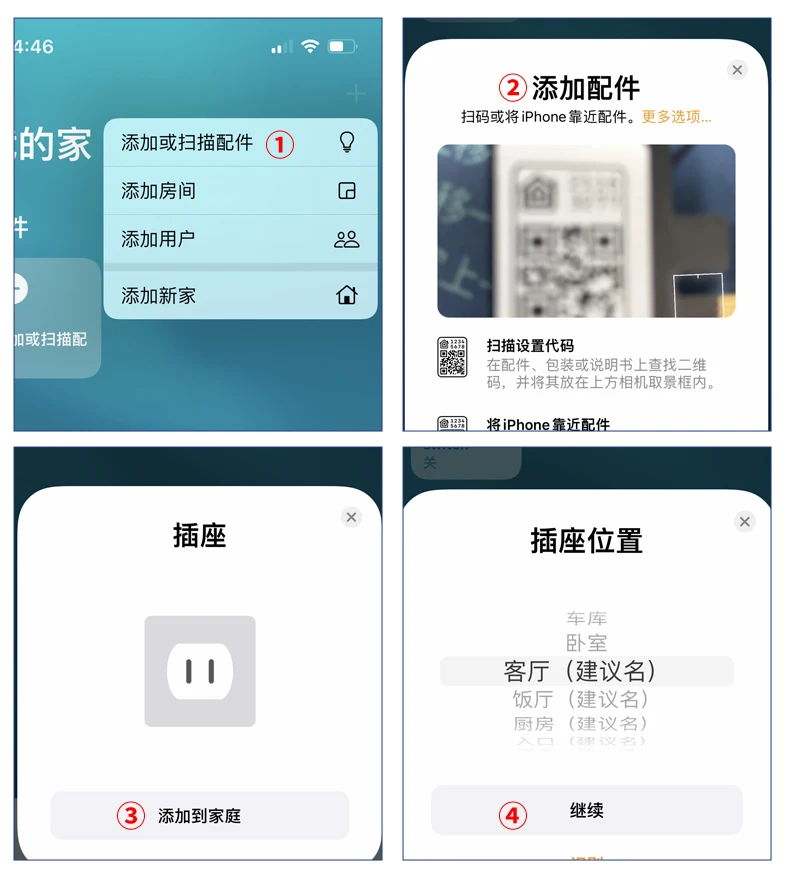
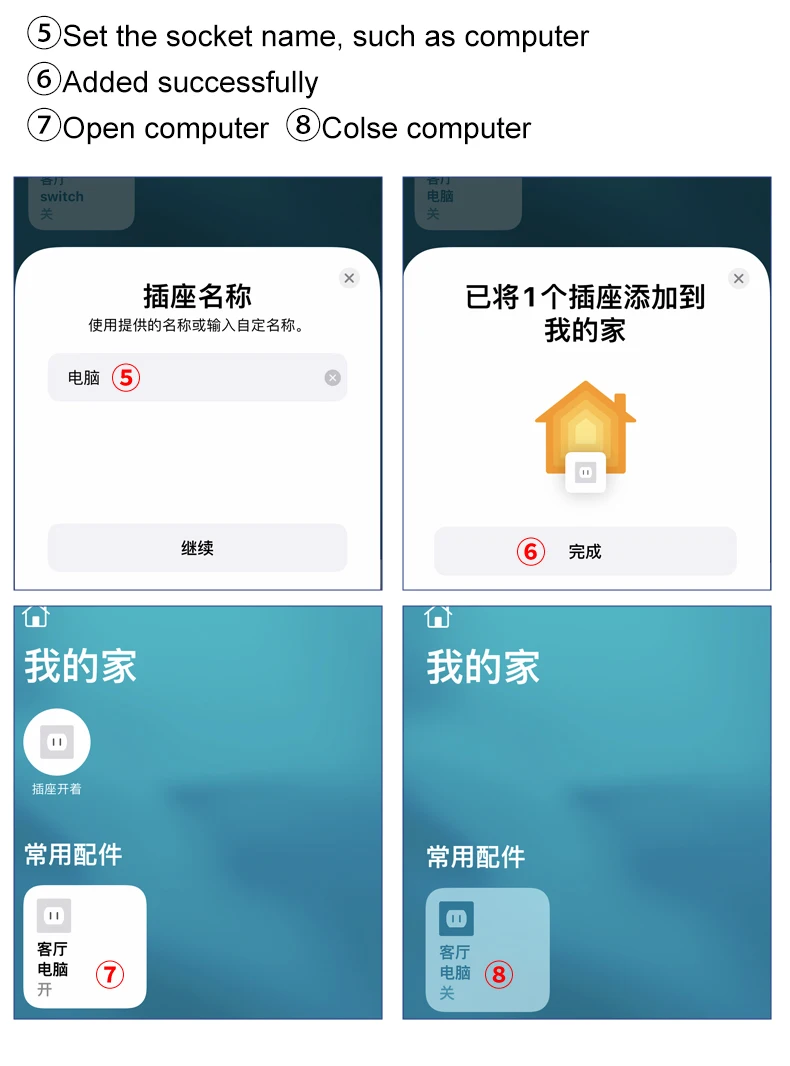
1 Open "Home" APP, You can choose scan QR code to add the product in the app.
choose"add or scan accessories" in the upper right corner.
2 Scan the QR code on the card or package.
Click"add to your home"
3.Choose the Location and rename the product name.
Specifications
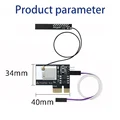
Item type: Computer Remote Boot Card
Interface: PCIE
Wi-Fi standard: matter over wifi, don't support 5G wifi.
Working temperature: -20℃~70℃
Working humidity: ≤80%
Mobile App: Homekit APP on IOS
1.If the computer turn on automatically after it's turned off.
It is because the PCIE card slot has no power and cannot supply power to our equipment. You only need to enter your computer’s “BIOS” setting and set the computer motherboard to remain powered when the computer is shut down to solve the problem.
For example:
(1). On computer, go to BIOS settings/Anvanced/APM Configuration, change the option "ErP Ready" to "Disabled" status and change the option “Power on by PCI-E” to “enabled”.
Note: This is only the setting method for one of the mainboards. Due to too many types of computer mainboards, it is impossible to list them all. Regardless of the type of motherboard, the solution is to keep the motherboard powered after the computer is turned off.
2.What should I do if I can't connect by scanning the QR code?
You can enter code number on home APP directly






Follow us on: